Signature resize 10 to 20 kb
Need to reduce your signature image for an online application? Resize the image, adjust its dimensions, choose an accepted format, set a target file size, and preview the result before downloading.
Editor | V.004
Drag & drop image, or click to select
Final Image Preview
Table of Contents
Why Do Signatures Need to Be 10 to 20 KB?
Online applications often place strict limits on uploaded images. A signature may need to fit inside a small file-size range because application systems are designed to process many uploads efficiently. When the instructions say that a signature should be between 10 KB and 20 KB, uploading a much larger scan or photograph may cause the form to reject the file.
The challenge is that a handwritten signature can come from many different sources. You might scan it at a high resolution, take a photograph with your phone, or save it from an image-editing application. The resulting files can have very different dimensions and file sizes even when the signature itself looks almost identical.
A signature resizer helps solve this problem by giving you control over the image dimensions and target file size. Instead of guessing how much the image needs to be reduced, you can make controlled changes and preview the result.
What Is a Signature Resizer?
A signature resizer is an online image utility designed to make a signature image smaller or adjust its dimensions for a particular upload requirement. It is useful when the original signature file is too large, has excessive blank space, or does not have the required dimensions.
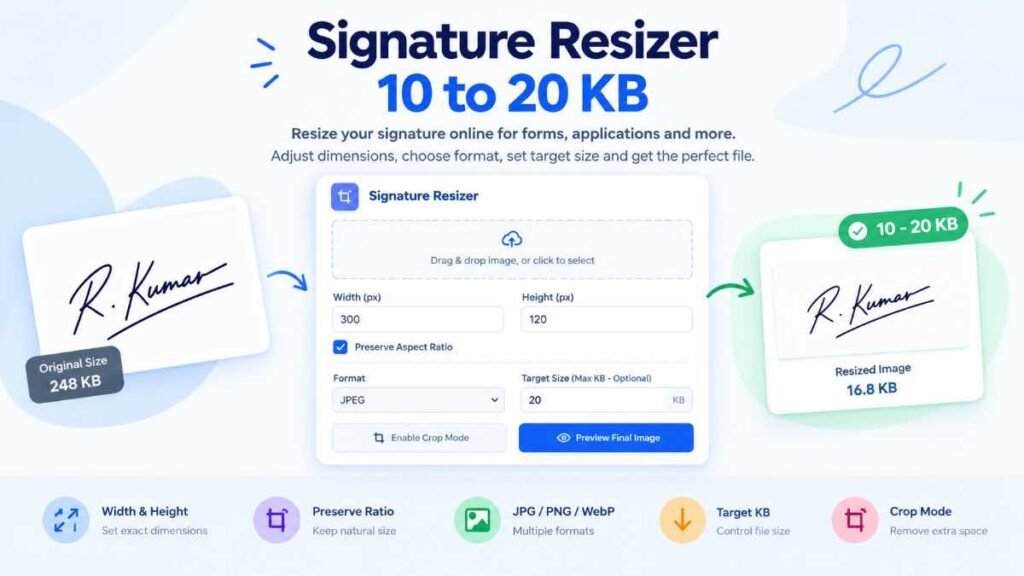
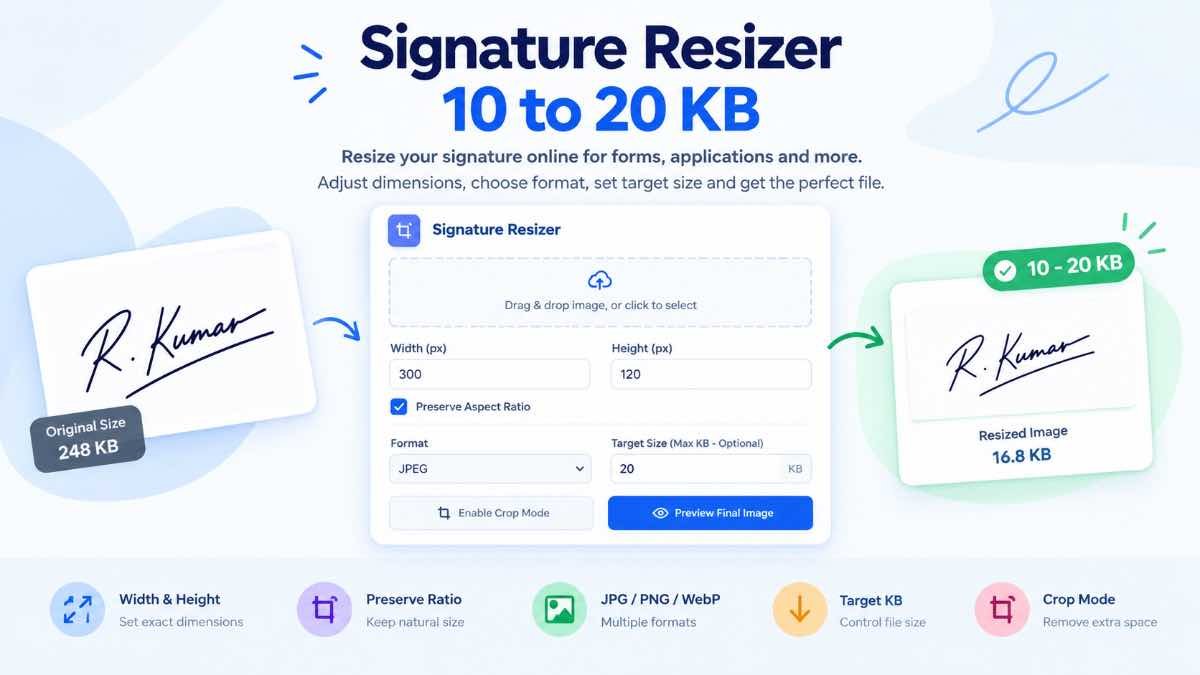
The tool above provides controls for width and height, a Preserve Aspect Ratio option, image format selection, a Target Size field, Crop Mode, and a final preview. These controls address two separate parts of preparing a signature: the physical dimensions of the image and the amount of data contained in the final file.
This distinction is important. A signature can have the correct dimensions but still be too large in KB. Likewise, a file can be very small but have dimensions that do not match the requirements of the application.
How to Resize a Signature to 10–20 KB
Preparing a signature does not have to involve complicated photo-editing software. A simple workflow is enough for most online forms.
Select your original signature image from your phone, tablet, or computer.
Enter the width and height required by the application if exact dimensions have been provided.
Select an image format supported by the website where you will upload the signature.
Enter the maximum file size required by the application and preview the final image.
1. Start with the original signature
Whenever possible, work from the original image instead of repeatedly resizing an already compressed copy. A clean source gives you more room to reduce the file size without unnecessarily damaging the appearance of the handwritten strokes.
2. Crop unnecessary space
If the signature occupies only a small portion of a large photograph or scanned page, crop the image first. Excessive white space does not help the application and can make the signature appear smaller than it really is.
3. Set the required width and height
If the application specifies exact pixel dimensions, use those numbers. Do not choose dimensions simply because they are common on another website. Different portals can have completely different requirements.
4. Keep the aspect ratio natural
Preserve Aspect Ratio is useful when you want the signature to maintain its natural proportions. Without it, changing width and height separately can make the handwriting look stretched or compressed.
5. Enter the target file size
If the requirement says the file must be no more than 20 KB, a 20 KB maximum target is a logical starting point. If the requirement specifically says 10–20 KB, check the final downloaded file to make sure it falls inside that range.
6. Preview the final image
Before using the signature on an application, inspect the final result. Make sure the writing is visible, the image is not unnecessarily distorted, and the file meets the upload requirements.
What Signature Dimensions Should You Use?
There is no single correct signature dimension for every online form. Some websites provide exact width and height requirements, while others focus mainly on file size and accepted formats.
If the application gives you dimensions, those instructions should take priority. If it does not, avoid making the image unnecessarily large or unnecessarily tiny. The signature should remain easy to recognize at the size expected by the destination website.
Remember that pixel dimensions and KB are separate requirements. A signature with the correct width and height can still exceed a file-size limit, while a very small file can still fail because its dimensions are incorrect.
Which Image Format Is Best for a Small Signature?
The correct format is ultimately the format accepted by the website where you are uploading the signature. When file size is important, JPEG can often be a practical option because compression can produce relatively small files.
| Format | When It Can Be Useful | What to Check |
|---|---|---|
| JPEG | Useful when a compact image is needed and the application accepts JPG or JPEG. | Strong compression can reduce fine details. |
| PNG | Useful when lossless image quality or transparency is important. | The resulting file may be larger for some images. |
| WebP | Useful when the destination website specifically supports WebP. | Some older application portals may not accept it. |
Never choose a format solely because it creates the smallest file. If the application accepts only JPG, for example, a WebP file that is smaller will still be unusable.
Why Image Dimensions and KB Are Different
Width, height, and file size are related, but they are not the same thing. Width and height describe how many pixels make up the image. KB describes how much digital storage the saved file requires.
Two images can have exactly the same dimensions but different file sizes. The difference may come from the selected format, compression, image content, metadata, and other information stored inside the file.
This is why reducing the width and height does not always guarantee a particular KB value. If you need a signature in the 10–20 KB range, both the image dimensions and final file size should be checked.
Common Signature Resize Problems
The signature is still above 20 KB
Try reducing unnecessary dimensions, cropping blank areas, or selecting an appropriate compressed format supported by the destination website. Make changes gradually so the signature does not become unnecessarily blurry.
The signature became blurry
Blurriness can occur when an image is compressed too aggressively or reduced to very small dimensions. Start again from the original signature and use smaller adjustments rather than repeatedly compressing the same file.
The signature looks stretched
This usually happens when width and height are changed independently. Enable Preserve Aspect Ratio when you want to maintain the original shape of the handwriting.
The signature is too small inside the image
Look at the amount of empty space surrounding the handwriting. If the original image contains a large white background, use Crop Mode to remove unnecessary areas before resizing.
The website rejects the resized image
Check more than just the KB value. The website may also require a specific extension, exact pixel dimensions, a particular aspect ratio, or a minimum and maximum file size.
Tips for Online Application Forms
Signature uploads are common on recruitment forms, examination portals, registrations, educational applications, financial services, and other online systems. Because each website can define its own rules, checking the instructions before resizing is the safest approach.
Before submitting your signature, look for these four details: file format, file-size limit, image dimensions, and any special instructions about the signature.
- Use a clear and recognizable handwritten signature.
- Avoid excessive blank space around the writing.
- Use the dimensions specified by the application.
- Choose only a format accepted by the destination website.
- Check the final KB size after resizing.
- Open the final image before uploading it.
- Keep the original signature file safely stored.
Most importantly, do not assume that a 10–20 KB signature will work on every website. Requirements vary, and the official instructions for the particular application should always take priority.
Is It Safe to Resize a Signature Online?
A signature is a personal image, so privacy should be considered when choosing an online image tool. Before uploading a signature, check how the service handles uploaded files and whether image processing takes place locally in your browser or on a remote server.
Browser-based processing can be useful for sensitive images because the image may be processed directly on your device rather than being uploaded to a remote service. However, users should always review the privacy information of the particular tool they choose.
If you are using a shared computer, remember to remove temporary copies after completing your application. On your personal device, keep the original signature in a secure location so that you do not need to recreate it later.
More Image Tools You May Find Useful
Preparing a signature for an application is sometimes only one part of the image-editing process. You may also need to crop an image, compress a photograph, or make another image fit a specific size requirement.
An image editor is useful when you need several adjustments in one place. A crop tool is helpful for removing unnecessary margins, while an image compressor can be useful when the main problem is the file size rather than the dimensions.
Frequently Asked Questions
How can I resize a signature to 10 to 20 KB?
Upload the signature, set the required dimensions, choose an accepted image format, enter a suitable maximum target such as 20 KB, and preview the result. If the application requires a strict 10–20 KB range, check the final downloaded file and adjust the settings if necessary.
Can I make a signature exactly 10 KB?
An exact file size cannot always be guaranteed because the final size depends on the image content, dimensions, format, and compression. If the website requires a narrow file-size range, check the final file after processing.
What should I do if my signature is above 20 KB?
Reduce unnecessary image dimensions, crop excess blank space, or choose a suitable compressed format accepted by the destination website. Preview the result after making changes so the signature remains clear.
Why does my signature become blurry after resizing?
The image may have been compressed too heavily or reduced to dimensions that are too small. Start from the original signature and make smaller adjustments instead of repeatedly compressing the same file.
Should I keep Preserve Aspect Ratio enabled?
In most cases, yes. It helps maintain the natural proportions of the signature when changing its width or height. If an application provides exact dimensions that require different proportions, follow the application’s instructions.
Which format should I use for an online signature?
Use the format accepted by the website. JPEG can be useful when a small file size is important, while PNG may be preferable for certain lossless-image requirements. Always check the upload instructions first.
Why is my signature image large even though it looks simple?
The original dimensions, compression, format, metadata, and surrounding blank space can all affect the final file size, even when the signature itself looks simple.
Can I resize a signature from my phone?
Yes. A browser-based signature resizing tool can be used from a phone when the device and browser support the image features required by the tool. The basic process is the same: upload, adjust, preview, and save.
Start with your original signature image, remove unnecessary empty space, set the required dimensions, select an accepted format, and use the target KB setting to work toward the required file size.
If your application asks for a signature between 10 KB and 20 KB, always verify the final downloaded file before submitting it. The best result is not simply the smallest possible image; it is a signature that meets the application’s requirements while remaining clear and recognizable.