
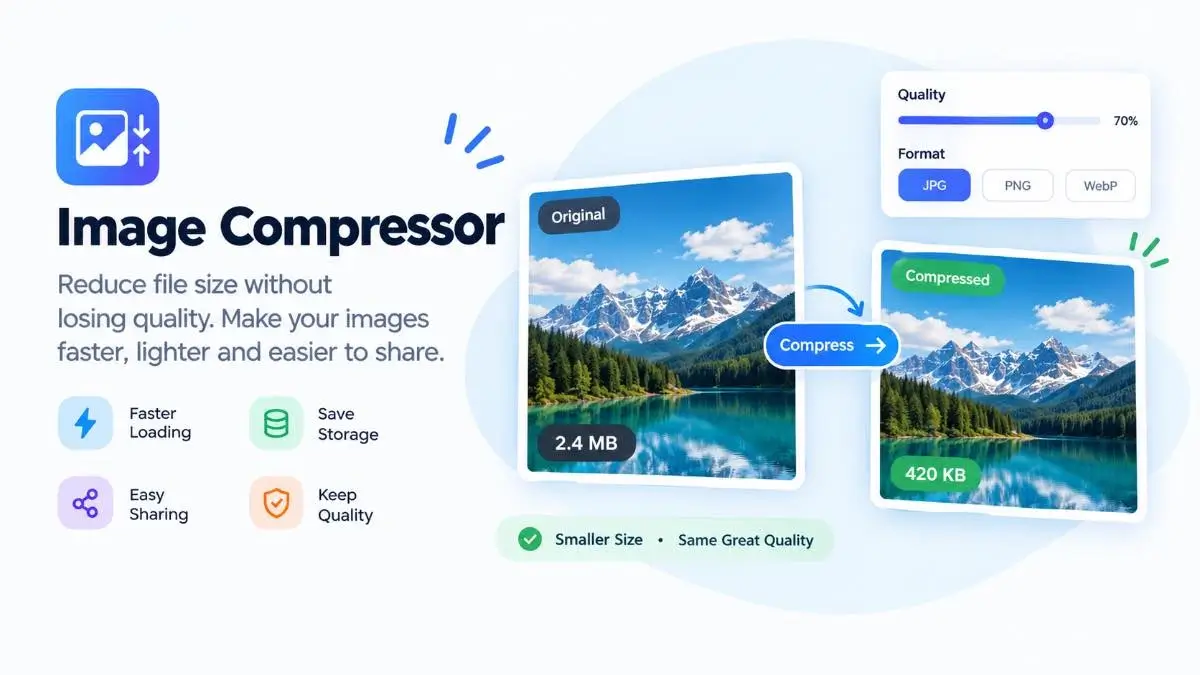
Image Compressor
Optimize and reduce your image file size instantly. 100% client-side and secure.
Drag & drop your image here or Browse
Large image files can make websites slower, take longer to upload, use more storage, and become difficult to share. An image compressor helps reduce the file size of a photo while keeping the image looking as close to the original as possible.
With the right compression settings, you can make images much smaller without turning them into blurry or heavily pixelated files. This is useful for websites, blogs, online stores, email attachments, social media, and everyday image sharing.
Table of Contents
- What Is Image Compression?
- Why Should You Compress Images?
- How Image Compression Works
- JPG, PNG, or WebP?
- Best Image Compression Settings
- Compressing Images for Websites
- Compressing Images for Social Media
- Compress Images for Email and Sharing
- Image Quality vs File Size
- How to Compress an Image Online
- Common Image Compression Mistakes
- Useful Image Tools
- Frequently Asked Questions
What Is Image Compression?
Image compression is the process of reducing the amount of data stored inside an image file. The result is a smaller file that takes less storage space and usually loads or uploads faster.
For example, a photograph that is several megabytes in size may be reduced to under 1 MB while still looking good on a phone or computer. The exact result depends on the original image, dimensions, format, and compression quality.
A good image compressor gives you a balance between file size and visual quality. The goal is not always to make an image as small as possible. The goal is to make it small enough for its intended purpose without unnecessary quality loss.
Why Should You Compress Images?
Compressing images can be useful in many everyday situations. Large files are not always a problem when you are storing an original photo, but they can become inconvenient when you need to publish, upload, email, or share the image.
1. Faster Website Loading
Large images can contribute significantly to the amount of data a web page needs to load. Smaller image files can help reduce page weight, especially when a page contains several photos.
2. Easier Uploads
Some websites have file-size limits. Compressing an image before uploading can help you stay within those limits.
3. Smaller Storage Requirements
If you keep thousands of images, reducing unnecessary file size can save considerable storage space over time.
4. Easier Email Sharing
High-resolution photographs can be much larger than necessary for normal email communication. A compressed copy is often more practical for sharing.
5. Better Everyday Sharing
Smaller files are generally quicker to upload and send through online services, messaging platforms, forms, and cloud storage.
How Does Image Compression Work?
Image compression works by reducing the amount of information required to store an image. Different image formats and compression methods do this in different ways.
With lossy compression, some image information is removed to achieve a significantly smaller file. When the compression level is reasonable, the difference may be difficult to notice at normal viewing sizes.
Lossless compression reduces file size without permanently removing image information. It is useful when preserving the original image data is important, although the resulting files may not be as small as aggressively compressed lossy images.
Compression is also affected by image dimensions. A 4000 × 3000 pixel photograph contains much more image data than a 1200 × 900 pixel version. In many cases, resizing and compressing an image together produces a much smaller and more practical file.
JPG, PNG, or WebP: Which Format Is Better?
There is no single image format that is best for every situation. The right choice depends on the type of image and where you plan to use it.
| Format | Best For | Main Advantage |
|---|---|---|
| JPG / JPEG | Photographs and realistic images | Good compression and broad compatibility |
| PNG | Graphics, screenshots, and transparency | Supports lossless compression and transparency |
| WebP | Modern websites and general web images | Often provides a useful balance of quality and file size |
For ordinary photographs, JPG or WebP can often produce a much smaller file than an uncompressed or unnecessarily large PNG. For screenshots, logos, illustrations, and images that need transparency, PNG can still be a better choice.
What Are the Best Image Compression Settings?
The best compression setting depends on the final use of the image. There is no universal quality number that works perfectly for every photograph.
For Websites
Start with a moderate compression level and check the result visually. If the image still looks sharp at the size it will appear on the page, you can reduce the file size further.
For Social Media
Focus on the dimensions required by the platform as well as file size. Sending an unnecessarily huge image does not always provide a better result after the platform processes it.
For Email
A smaller JPEG or WebP copy is often suitable when the recipient does not need the original full-resolution photograph.
For Archiving
Compression should be more conservative when the image is an original that you may need to edit or reuse later. Keep the original file and create smaller copies for specific purposes.
How to Compress Images for a Website
Website images need to look good while remaining reasonably small. Simply uploading the largest version available is rarely necessary.
- Choose the correct image dimensions for the page.
- Remove unnecessary image data where appropriate.
- Choose a suitable format such as JPG or WebP.
- Use moderate compression instead of maximum compression.
- Preview the compressed image before publishing it.
If an image will only be displayed at around 800 pixels wide, uploading a 5000-pixel-wide version may add unnecessary file weight. Resizing it first can often make a bigger difference than compression alone.
How to Compress Images for Social Media
Social media platforms commonly process uploaded images themselves. For that reason, it is useful to prepare a reasonably sized image before uploading rather than sending an unnecessarily huge original.
Start by checking the recommended dimensions for the specific platform and content type. Then resize the image if necessary and compress the resulting copy.
This approach gives you better control over the file you upload and prevents you from carrying unnecessary image data into the upload.
Compress Images for Email and Online Sharing
A full-resolution camera photo can be unnecessarily large for a simple email or online form. If the recipient only needs to view the image, a smaller copy is often enough.
For example, instead of attaching an original multi-megabyte photo, you can resize it to a practical viewing dimension and then compress the result. This can make the file easier to upload, send, and download.
Image Quality vs File Size: What Should You Choose?
Image compression is always about finding the right balance. Lowering the quality too much can create visible artifacts, blocky details, blurry edges, or loss of fine texture.
On the other hand, keeping quality extremely high can produce a file that is much larger than necessary.
A practical approach is to compress the image gradually and compare the result. Stop when the file is small enough for its purpose while the image still looks good at its intended viewing size.
Compress Your Image Online
Need a smaller image file? Use PicEditor’s online image tools to prepare your photo for websites, sharing, uploads, and everyday use.
Compress Image OnlineHow to Compress an Image Online
Compressing an image online can be very simple. The exact controls depend on the tool you use, but the general process is usually similar.
- Open an online image compressor.
- Upload or select the image you want to reduce.
- Choose the desired image format if the tool provides format options.
- Adjust compression or quality settings.
- Preview the result and check the image quality.
- Download the compressed image.
If the resulting file is still too large, you can reduce the image dimensions or use a slightly stronger compression setting. If the image looks too soft or contains visible artifacts, increase the quality and try again.
Common Image Compression Mistakes
Compressing the Original File
Avoid replacing your only original copy with a heavily compressed version. Keep the original and create a separate optimized copy.
Using Maximum Compression Every Time
Maximum compression can create visible quality loss. Use the lowest file size that still gives you acceptable visual quality.
Ignoring Image Dimensions
Compression alone may not be enough when the image dimensions are far larger than necessary. Resize oversized images before or alongside compression.
Using PNG for Every Photograph
PNG is useful for many graphics, but ordinary photographs often benefit from a more suitable photographic format such as JPG or WebP.
Checking Only the File Size
A file that is 90% smaller is not necessarily better if it looks poor. Always check the actual image, especially around faces, text, fine details, and sharp edges.
Useful Image Tools from PicEditor
Image compression is only one part of preparing an image. Depending on what you need to do, these related tools can also help:
- Image Editor — edit and improve your images online.
- Crop Image — remove unwanted areas and create the right composition.
- Image Resizer — change image dimensions before uploading or sharing.
- Image Converter — convert images between supported file formats.
- Photo Editor — access PicEditor’s main photo editing experience.
Frequently Asked Questions About Image Compression
What does an image compressor do?
An image compressor reduces the amount of data stored in an image file so the resulting file is smaller. Depending on the compression method, some image information may be removed to achieve a greater reduction in file size.
Does compressing an image reduce quality?
It can. The amount of visible quality loss depends on the format, compression level, original image, and viewing size. Moderate compression can often reduce file size while keeping the image looking good.
What is the best format for compressed photos?
JPG and WebP are commonly useful for photographs because they can provide a good balance between image quality and file size. The best choice depends on where the image will be used and whether features such as transparency are required.
Should I resize an image before compressing it?
If the original image is much larger than the dimensions required for its final use, resizing it can significantly reduce file size. For many website and sharing workflows, resizing and compression work well together.
Is a smaller image file always better?
No. The smallest file may have noticeable quality problems. A good result is a practical balance between file size, dimensions, and visual quality.
Should I keep my original image?
Yes. It is generally a good idea to keep the original high-quality image and create compressed copies for websites, email, social media, and other uses.
Can I compress images for a website?
Yes. Compressing and appropriately resizing images can help reduce unnecessary image file weight on a website. The ideal settings depend on the image type, dimensions, design, and intended use.
Make Your Images Smaller Without Making Them Complicated
Image compression does not have to mean sacrificing a large amount of quality. The best approach is to choose sensible dimensions, use an appropriate image format, and apply enough compression to remove unnecessary file weight while keeping the image looking good.
Whether you are preparing an image for a website, social media, email, an online form, or everyday sharing, a properly compressed copy is often easier to manage than the original high-resolution file.