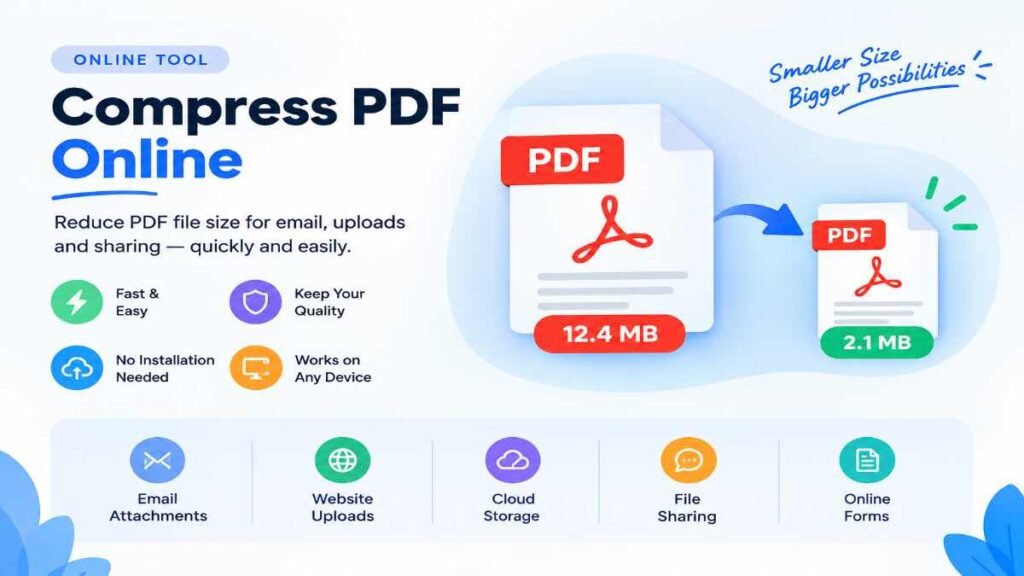
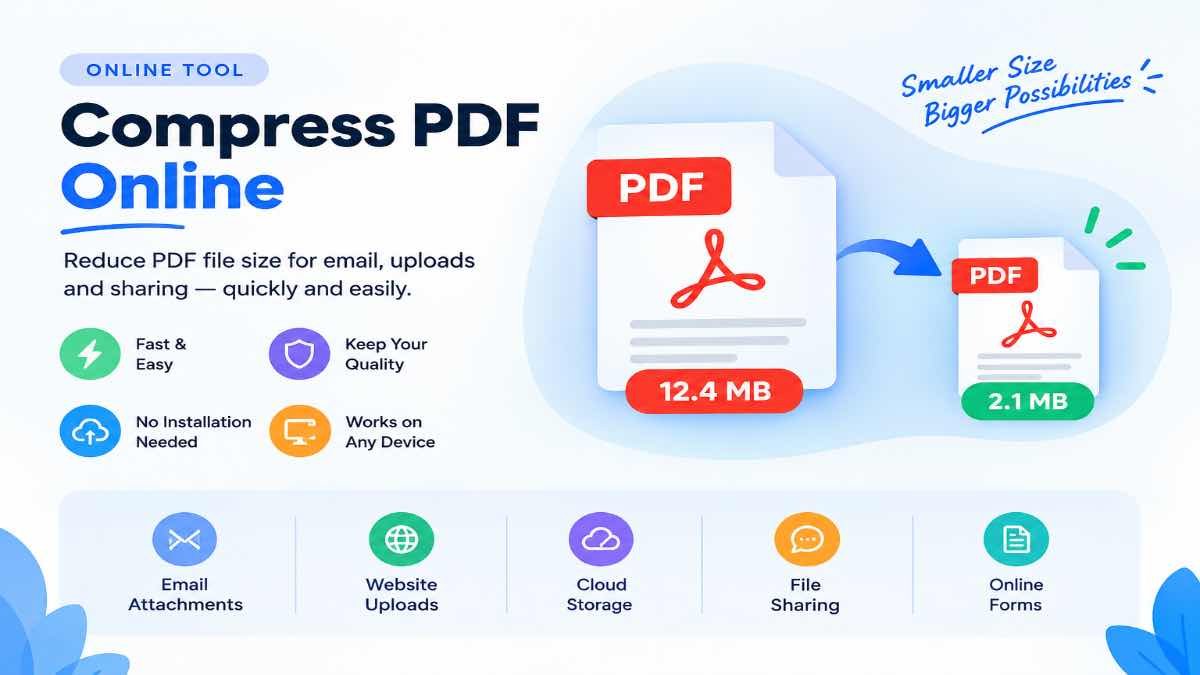
Compress PDF Document
Reduce file size locally without server uploads. Secure and private.
Drag & drop PDF file
or click below to browse
Extreme Compression
Maximum size reduction, suitable for online sharing.
Recommended
Standard balance between quality and file size.
Less Compression
High visual quality with minor reduction.
How to Compress PDF Without Losing Important Quality
Large PDF files can be difficult to email, upload, store, or share. Learn how PDF compression works, how to choose the right compression level, and how to reduce PDF file size while keeping important text, images, and document details readable.
Table of Contents
- Why Are Some PDF Files So Large?
- What Does PDF Compression Mean?
- Lossless vs. Lossy PDF Compression
- When Should You Compress a PDF?
- How to Compress PDF Files Online
- How to Compress PDF While Preserving Readability
- Tips to Reduce PDF File Size
- Which Compression Level Should You Choose?
- How Much Can a PDF Be Compressed?
- PDF Compression Troubleshooting
- Is It Safe to Upload a PDF Online?
- Why You Should Keep the Original PDF
- Frequently Asked Questions
Smaller Files
Reduce the amount of data stored in your PDF so it is easier to upload, save, email, and share.
Readable Documents
Choose a suitable compression level and check important pages before submitting the final PDF.
Easy Sharing
A smaller document can be more convenient for email attachments, portals, websites, cloud storage, and messaging.
Why Are Some PDF Files So Large?
PDF files can become large for several reasons. A document containing only text may be relatively small, while a PDF made from high-resolution photographs or scanned pages can occupy much more storage space.
Images are often one of the biggest contributors to PDF size. When a document contains many detailed photographs, screenshots, or scanned pages, all of that visual information has to be stored inside the file.
Embedded fonts, document resources, metadata, and other internal PDF data can also contribute to the final size. The result may be a file that is perfectly usable but inconveniently large.
What Does PDF Compression Mean?
PDF compression is the process of reducing the amount of data contained in a PDF so the resulting file occupies less storage space.
Depending on the document, compression may optimize images, remove redundant information, reorganize internal data, or reduce the amount of image detail stored in the file.
A text-based PDF and a scanned PDF may respond very differently to the same compression settings. This is why there is no single compression level that is perfect for every document.
The aim is to optimize unnecessary data while keeping the document useful for its intended purpose.
Lossless vs. Lossy PDF Compression
Lossless Compression
Lossless methods reduce data without intentionally discarding information. They are useful when preserving the underlying document data is particularly important, although the reduction may be limited for some PDFs.
Lossy Compression
Lossy methods reduce file size by simplifying or discarding some information, often from images. Stronger compression can produce smaller files, but it may also reduce image detail.
“Compress PDF without losing quality” should generally mean preserving the quality needed for the document’s intended use. A photo-heavy or scanned PDF may show visible changes when stronger compression is used.
When Should You Compress a PDF?
You should consider compression when a PDF is unnecessarily large for the task you need to complete. Common situations include online applications, email attachments, document sharing, and cloud storage.
Email Attachments
Reduce PDF size when an attachment is too large for your email service.
Online Portals
Useful for government, education, recruitment, and other upload forms.
Messaging
Smaller documents are generally easier to share through messaging services.
Cloud Storage
Reducing unnecessary file size can help you use available storage more efficiently.
Website Uploads
Compress PDFs when a website imposes a maximum upload size.
Work & Study
Useful for resumes, assignments, invoices, reports, and research documents.
How to Compress PDF Files Online
If you need to compress PDF online, the process is usually simple. Follow these steps and always inspect the final document before using it.
Upload Your PDF
Select the PDF file you want to make smaller.
Choose Compression
If available, select the compression level that matches your needs.
Start Compression
Start the process and wait for the tool to finish processing the document.
Download the PDF
Download the smaller PDF and save it with a recognizable filename.
Check the Result
Open the compressed document and check important pages before sharing it.
How to Compress PDF While Preserving Readability
The smallest possible PDF is not always the best result. If a document contains important text, signatures, charts, photographs, or scanned records, readability should come before maximum size reduction.
- Use lighter compression when print or image quality is important.
- Check small text and footnotes after compression.
- Inspect signatures, stamps, charts, and diagrams.
- Compare the compressed PDF with the original.
- Use stronger compression only when the file-size requirement demands it.
- Keep the original PDF until you are satisfied with the result.
Tips to Reduce PDF File Size
Remove unnecessary pages
Blank pages, duplicate pages, outdated sections, or information that is not required for submission can increase the document size unnecessarily. Remove them when appropriate.
Compress large images before creating the PDF
If you create PDFs from photographs or other large images, resizing and compressing those images beforehand can help prevent an unnecessarily large final document.
Avoid excessive scan resolution
High-resolution scans can consume substantial storage space. For documents intended mainly for screen viewing, an extremely high scan resolution may not be necessary. However, preserve enough detail for small text, signatures, stamps, and other important elements.
Remove unnecessary metadata when appropriate
Some PDFs contain metadata and other document information that may not be needed for everyday sharing. Removing unnecessary metadata can sometimes reduce overhead, although it is unlikely to transform every large PDF.
Choose the right compression level
If a light setting makes the file small enough for your purpose, there may be no reason to use aggressive compression. If a website has a strict upload limit, stronger compression may be useful after checking the result.
Which Compression Level Should You Choose?
| Situation | Recommended Approach |
|---|---|
| Email attachment | Medium compression |
| Text-only PDF | Light or medium compression |
| Scanned document | Medium compression with quality check |
| Website upload limit | Stronger compression after checking readability |
| Print-quality document | Light compression |
How Much Can a PDF Be Compressed?
There is no fixed amount that applies to every PDF. The potential size reduction depends heavily on the document’s original structure and content.
A PDF containing mostly selectable text may already be relatively efficient. A PDF containing many high-resolution photographs or scanned pages may have much more data that can potentially be optimized.
Factors that influence the result include image resolution, image formats, number of pages, embedded fonts, scans, embedded files, existing compression, and the internal structure of the PDF.
PDF Compression Troubleshooting
PDF is still too large
Check for high-resolution images, scanned pages, unnecessary pages, or embedded files. If acceptable, try a stronger compression setting.
Text looks blurry
Try lighter compression. If the PDF is scanned, the text may actually be part of an image and can be affected by image compression.
File cannot be uploaded
Check the website’s size limit and supported format. Confirm that you are selecting the newly compressed file.
PDF contains scanned images
Scanned PDFs can be much larger than text PDFs. Use appropriate compression and carefully inspect small text and fine details.
Password-protected PDF
Some protected PDFs cannot be processed normally. If you are authorized to modify the file, unlock it according to the document’s permissions.
Corrupted or unsupported file
Open the original PDF first. If it cannot be opened normally, the source document itself may be damaged.
Compressed PDF will not open
Download the file again and, if necessary, try processing the original PDF with a different compression setting.
Images lost too much detail
Use lighter compression. Photo-heavy PDFs often need a balance between file size and image quality.
Is It Safe to Upload a PDF Online?
Privacy is important whenever you upload a document to an online service. Different PDF compression tools use different processing and file-retention practices.
Before uploading a sensitive document, check the service’s privacy policy and understand how uploaded files are handled.
File deletion: [Explain whether uploaded files are automatically deleted and how long they are retained.]
Processing: [Explain whether files are processed in the browser or on the server.]
Document handling: [Explain whether the tool stores, shares, or analyzes uploaded documents.]
For confidential business, legal, financial, or personal documents, do not upload them to an online service unless you understand its document-handling practices and are comfortable with them.
Why You Should Keep the Original PDF
Always keep the original document until you have opened and checked the compressed version.
This is especially important for resumes, certificates, contracts, invoices, tax documents, research papers, assignments, and business reports.
Compression can change image quality or other document characteristics. Keeping the original gives you a backup if the compressed copy does not meet your requirements.
Make Your PDF Smaller
Need a smaller PDF for email, online forms, websites, storage, or sharing? Try Compress PDF and check the compressed document before submitting or sharing it.
Compress PDF OnlineFrequently Asked Questions About PDF Compression
How do I compress a PDF online?
Open an online PDF compression tool, upload your PDF, choose a suitable compression level if available, start processing, and download the smaller file. Always open the compressed PDF and check important pages before submitting or sharing it.
Can I compress a PDF for free?
Some services offer a free PDF compressor. Features, file-size limits, processing methods, and privacy practices can vary, so check the specific service before uploading important documents.
How can I reduce PDF size without losing quality?
Use the lightest compression setting that meets your required file size. You can also remove unnecessary pages and reduce oversized images before creating the PDF. Always inspect the final document for readability.
Why is my compressed PDF still large?
High-resolution photographs, scanned pages, embedded files, fonts, and the original PDF structure can all contribute to file size. If the PDF was already efficiently compressed, there may also be limited room for further reduction.
Can I compress a scanned PDF?
Yes. Scanned PDFs can often be compressed, but their pages are usually stored as images. Strong compression can therefore affect small text, signatures, stamps, and other fine details.
Is it safe to upload a PDF online?
It depends on how the specific service processes and stores uploaded files. Check its privacy information for details about processing, retention, deletion, storage, and document sharing before uploading sensitive material.
Can I compress a password-protected PDF?
It depends on the document and the compression tool. Password protection may prevent processing. If you have permission to modify the document, you may need to unlock it before compression.
Does compressing a PDF affect its text?
Normal text stored as text does not necessarily become blurry. However, text in a scanned PDF may be part of an image, so image compression can affect its appearance.
Can I compress a PDF for email?
Yes. If your attachment is too large, compressing the PDF can help bring its size within the email service’s limit. Choose enough compression to meet the requirement while keeping the document readable.
What should I do if the compressed PDF looks blurry?
Process the original PDF again using a lighter compression setting. This is particularly important for scanned documents and image-heavy PDFs where aggressive compression can reduce visual detail.
Conclusion
A large PDF can be inconvenient, but you do not always need to sacrifice useful document quality to reduce its size. The right approach is to understand what is making the PDF large and then choose compression that matches the document’s purpose.
Whether you need to reduce PDF size for email, upload a document to an online portal, save cloud storage space, or share a report, a sensible compression workflow can make the file much easier to handle.
If you need to compress PDF online, try Compress PDF at piceditor.app/compress-pdf. After compression, open the final file and make sure the text, images, signatures, tables, and other important information are still suitable for your intended use.