Create a Better Profile Picture in Seconds
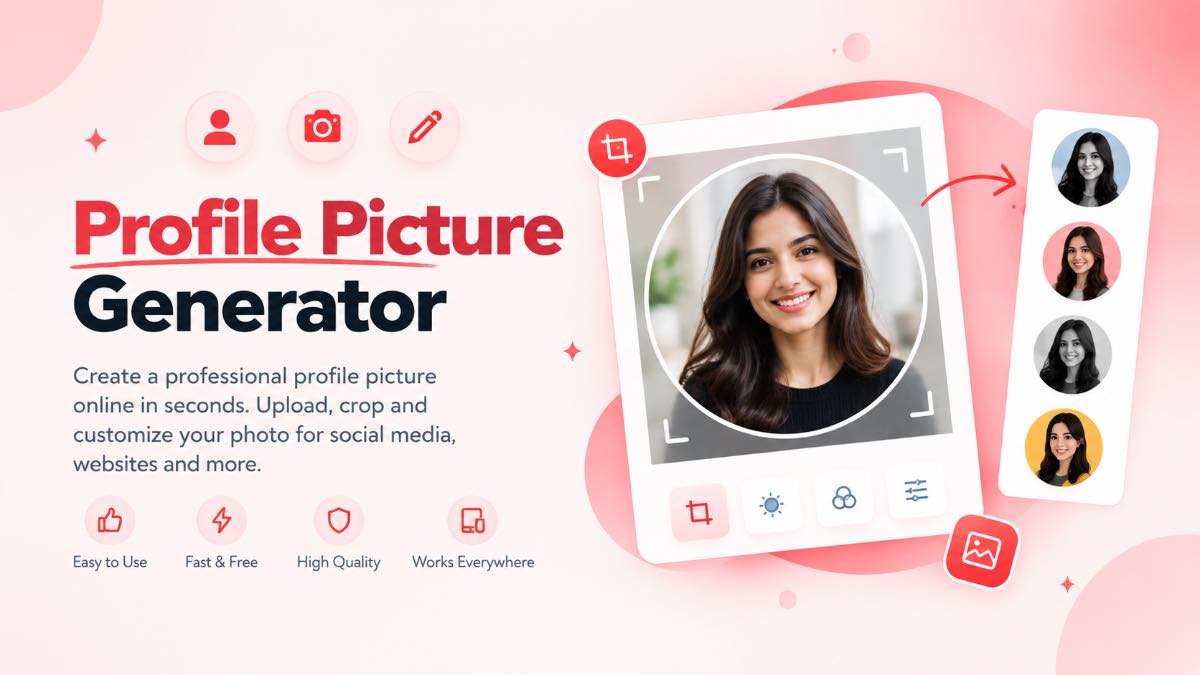
Turn an ordinary photo into a clean, well-framed profile picture for social media, professional accounts, websites, messaging apps and online communities.
Profile Picture Generator
Apni Image Yahan Upload Karein
PNG, JPG, JPEG, ya WEBP format (Max: 10MB)
Table of Contents
- What Is a Profile Picture Generator?
- Why Use a Profile Picture Generator?
- How to Create a Profile Picture Online
- What Can You Do With It?
- What Makes a Good Profile Picture?
- How to Create a Professional Profile Picture
- Where Can You Use a Profile Picture?
- Common Profile Picture Mistakes
- Profile Picture Generator vs Manual Editing
- Frequently Asked Questions
What Is a Profile Picture Generator ?
A profile picture generator is an online image tool that helps you turn an ordinary photograph into a clean, properly framed profile image. Instead of opening complicated editing software and manually figuring out the crop, you can prepare a profile-ready picture through a much simpler workflow.
Profile pictures are displayed in many different places online. They may appear as a small circle beside your name, inside a social media profile, on a professional account, in a messaging application or on an online community.
A profile picture should work even when it is small. Good framing keeps your face, logo or main subject visible after the image is reduced and displayed inside a small profile area.
Why Use a Profile Picture Generator ?
A normal photograph is not always ready to be used as a profile image. It may contain too much background, have the subject positioned too far to one side, or have dimensions that do not work well with the platform where you want to upload it.
Better Framing
Keep your face, logo or main subject in a balanced position.
Clean Crop
Reduce unnecessary background and focus attention on the subject.
Profile Ready
Prepare a practical image for profile and avatar use.
Mobile Friendly
Create images that remain recognizable on smaller screens.
Simple Workflow
Prepare a profile image without a complicated editing process.
Easy to Use
Designed for quick image preparation without unnecessary steps.
How to Create a Profile Picture Online
Creating a profile picture does not need to be complicated. Start with a good photo and use the generator to prepare a cleaner composition.
Upload Your Photo
Select a clear photo from your phone, tablet or computer.
Position the Subject
Make sure your face, logo or main subject is clearly visible.
Check the Crop
Keep important details comfortably away from the edges.
Save the Result
Download your finished profile picture and upload it to your account.
After creating your profile picture, view it at a small size. If your face or main subject is still immediately recognizable, the composition is probably working well.
What Can You Do With a Profile Picture Generator?
The main purpose is simple: turn a normal photograph into a profile-friendly image . A properly framed image can also help you maintain a more consistent visual identity across your online accounts.
If your original photo contains a large amount of background, crop it so your face or main subject occupies enough of the final image. This is especially important when the platform displays the picture as a small circle.
If you regularly work with images, you can also use our Image Resizer, Image Compressor, Photo Editor and Image Cropper for other image preparation tasks.
What Makes a Good Profile Picture?
A good profile picture does not require expensive equipment or advanced editing. The most important qualities are clarity, good composition and recognizability.
Keep the Face Clearly Visible
For a personal account, your face is normally the most important part of the image. Avoid cropping directly through important facial features or positioning the face too close to the edge.
Use a Simple Background
A complicated background can compete with the subject. A cleaner background keeps attention on the person and usually works better when the profile picture is displayed at a small size.
Do Not Zoom Too Much
A close crop can look good, but excessive zooming may remove useful context and make the picture feel uncomfortable. Leave a little breathing room around the subject.
How to Create a Professional Profile Picture
If you are creating a profile image for work, business or a professional networking account, simplicity is usually the better approach. Your goal should be to look recognizable, clear and approachable rather than heavily edited.
Use a Recent Photo
Choose an image that represents how you currently look.
Keep It Simple
A clean composition usually looks more professional.
Check the Background
Reduce distractions that compete with your face.
Your profile picture should still look like you. Avoid unnecessary filters, extreme effects and distracting edits. A natural-looking photo is often more useful for professional profiles.
Where Can You Use a Profile Picture?
A properly prepared profile image can be useful almost anywhere you have an online identity.
Social Media
Use a recognizable profile image for social accounts and creator profiles.
Professional Accounts
Create a clean image for professional networking and business profiles.
Messaging Apps
Prepare a balanced image that remains recognizable on mobile screens.
Websites & Blogs
Add a consistent personal image to author pages and websites.
Online Communities
Use a clear avatar for forums and online communities.
Creator Profiles
Maintain a recognizable visual identity across creator platforms.
Different websites may use different image dimensions, file formats or display styles. Always check the platform’s current requirements before uploading your final image.
For YouTube specifically, you can check the official YouTube profile picture guidance .
Common Profile Picture Mistakes
Even a high-quality photograph can become a poor profile picture if it is cropped or positioned incorrectly.
1. Too Much Background
If your face occupies only a small portion of the image, it may become difficult to recognize when the platform reduces the picture.
2. Subject Too Close to the Edge
Circular profile crops can remove corners and outer edges. Keep important parts comfortably inside the image.
3. Low-Quality Original
Starting with a tiny or heavily compressed photograph limits how good the final image can look.
4. Overediting
Excessive filters and effects can make a profile picture look less natural. A clean image is usually easier to recognize.
If your original image is too large, you can first use an Image Compressor. If its dimensions are unsuitable, an Image Resizer can help prepare the file.
Profile Picture Generator vs Manual Editing
You can certainly create a profile picture manually using traditional image-editing software. However, that process can involve several extra steps when you only need a simple, properly framed profile image.
Manual Editing
Requires creating the right canvas, cropping, positioning and exporting the final image manually.
Online Generator
Provides a focused workflow designed specifically for preparing profile images.
Quick Tasks
Useful when you simply need a clean profile picture without a complete editing workflow.
How to Get the Best Profile Picture
Start with the best original photo you have. A sharp image with good lighting gives you more freedom when cropping and resizing. Then focus on composition rather than adding unnecessary effects.
For more image-editing work, explore our Photo Editor, Image Resizer, Image Compressor, Image Cropper and Signature resize 10 to 20 kb .
Frequently Asked Questions
What is a profile picture generator?
What is the best shape for a profile picture?
Can I use the same profile picture on different websites?
Why does my profile picture look too small?
How can I make my profile picture look professional?
Should I keep my face in the center?
Can I create a profile picture from a phone photo?
Do different platforms have different profile picture requirements?
Create Your Profile Picture Now
Upload your photo, position the important part, check the preview and create a cleaner profile image ready for your online identity.
Create Profile Picture